The to-do list app that shows you what’s next.
Updot To-do list is part of Updot, the iPhone app for your habits, to-do list, reminders, calendar, notes and focus timer. Tasks come in from your messages, your notes and your voice. Updot sorts them by how urgent they are, keeps the next one on top with a countdown, and reminds you before each is due.
A long list doesn’t tell you where to start.
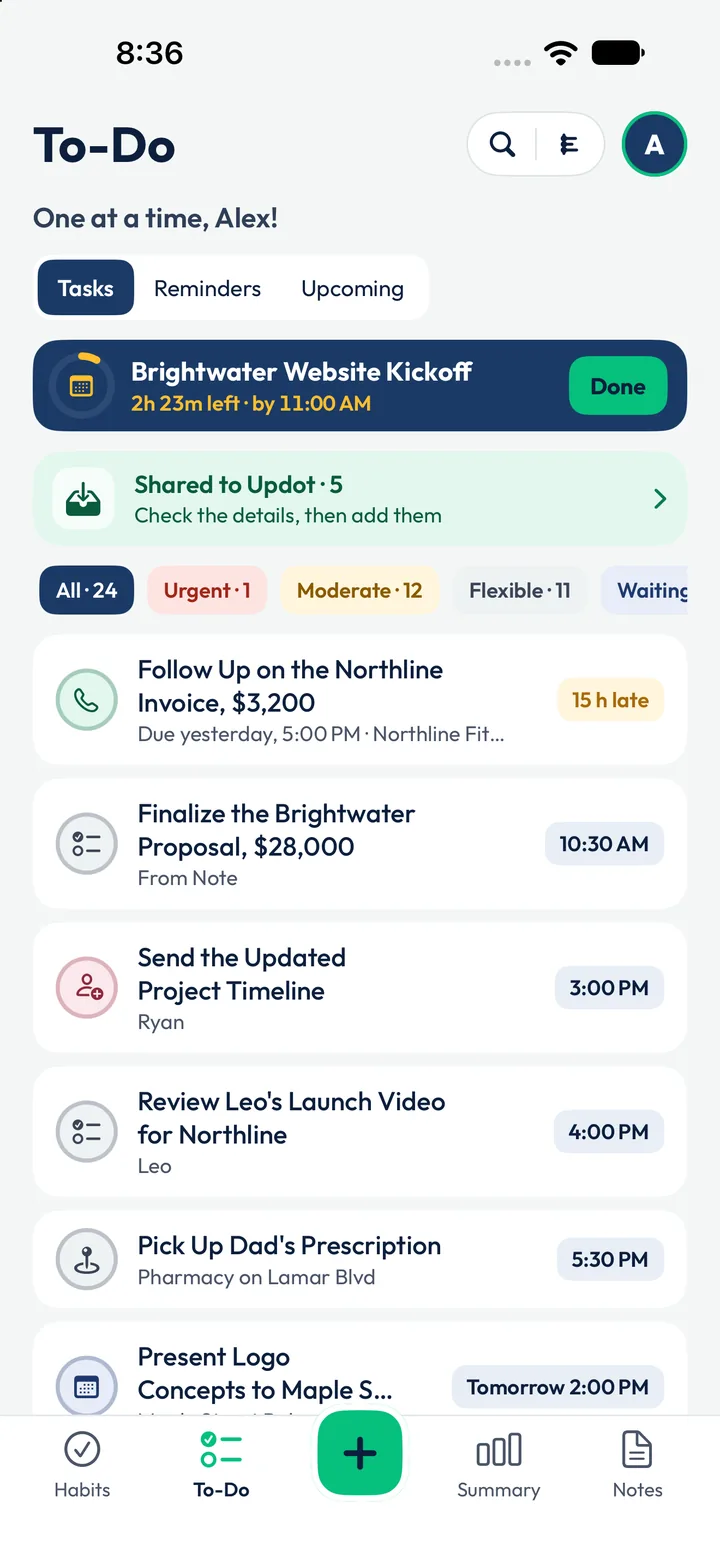
By 9 AM Alex has 24 tasks: a $28,000 proposal, an invoice that’s 15 hours late, a client video and his dad’s prescription. Most to-do apps show all 24 at once and leave the choosing to him.
Everything looks equal
Updot sorts by due time and by Urgent, Moderate or Flexible, and keeps one task on top.
Tasks hide in messages
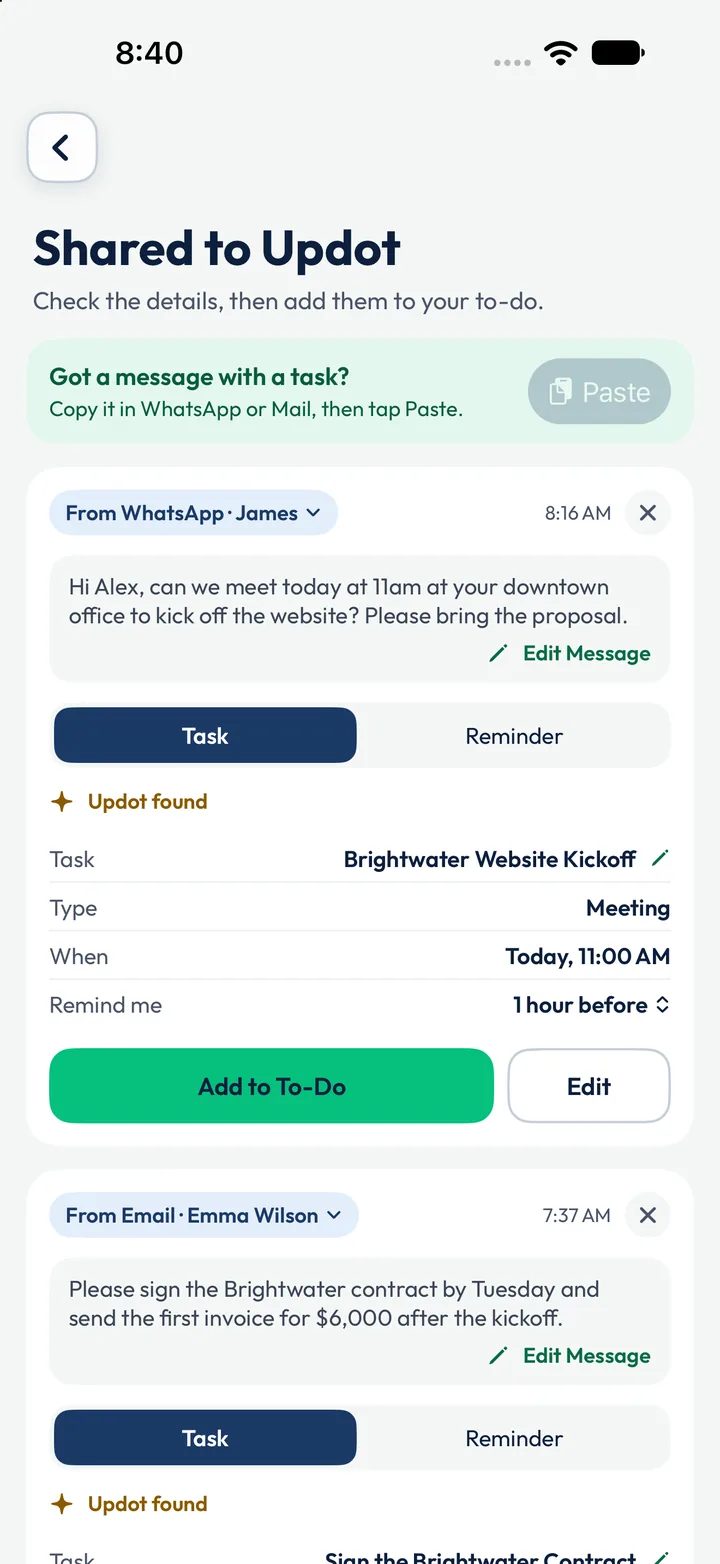
Emails and texts with a job in them become tasks with a tap, so nothing waits in a chat.
Late without noticing
A countdown shows the time left, and Updot tells you when a task is due and when it’s late.
From scattered jobs to one clear next step.
- 1
Capture it in seconds
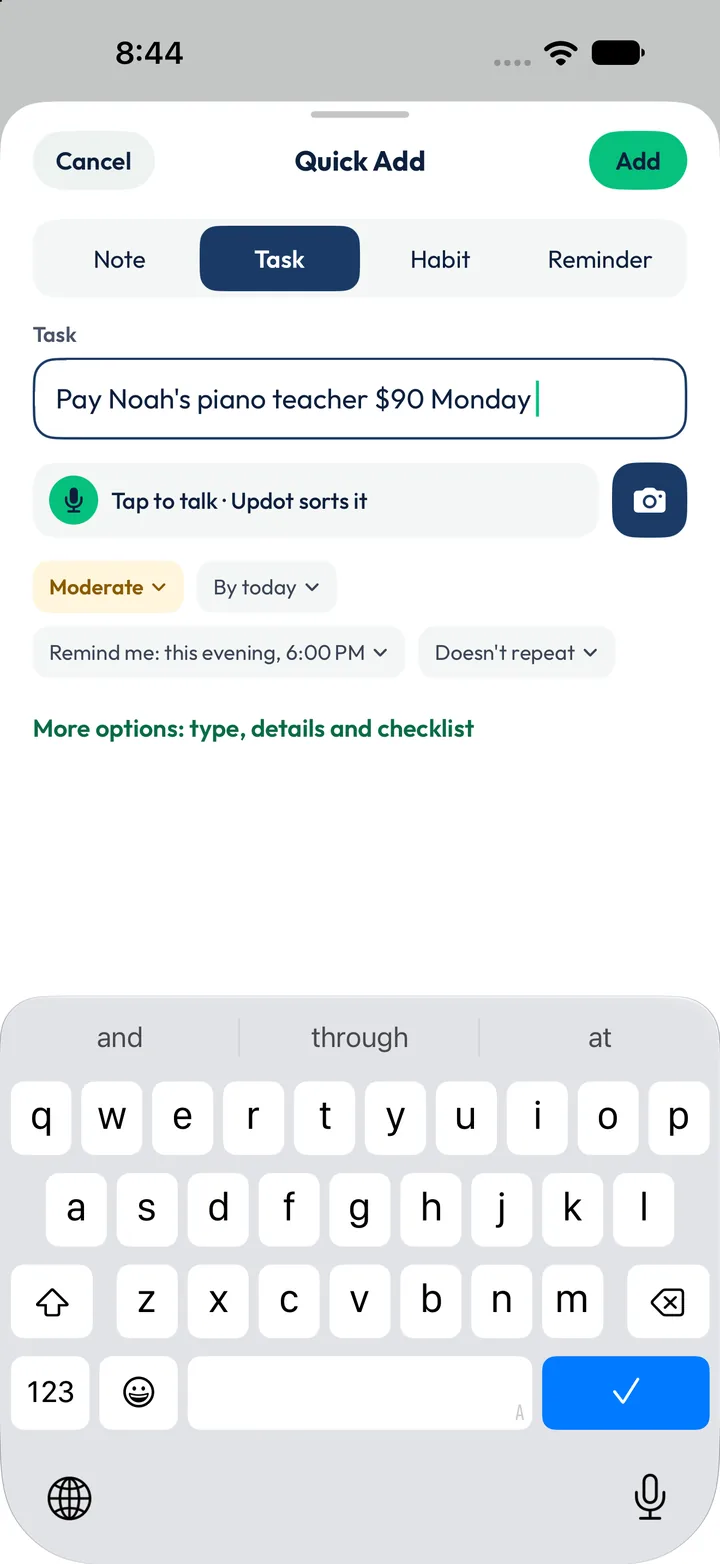
Type “Pay Noah’s piano teacher $90 Monday”. Updot sets it as Moderate, due today, with a reminder at 6:00 PM. Tap to talk, or snap a photo, instead.
- 2
Let messages become tasks
Emma’s email, “Please sign the Brightwater contract by Tuesday”, becomes Sign the Brightwater Contract. James’s WhatsApp becomes the 11:00 AM kickoff.
- 3
Work one at a time
The top card shows the next job: Brightwater Website Kickoff, 2h 23m left, by 11:00 AM. Finish it and the next one moves up.
Six of Alex’s 24 tasks, in the order Updot shows them.
Filters split them into Urgent 1, Moderate 12 and Flexible 11. Each task carries its time, the person it’s for, where it came from and, when it matters, a place.
- Follow Up on the Northline Invoice$3,200 · 15 h lateLate
- Finalize the Brightwater Proposal$28,000 · 10:30 AMFrom Note
- Send the Updated Project TimelineRyan · 3:00 PMFor Ryan
- Review Leo’s Launch Video for Northline4:00 PMToday
- Pick Up Dad’s PrescriptionPharmacy on Lamar Blvd · 5:30 PMPlace
- Present Logo Concepts to Maple StreetTomorrow · 2:00 PMUpcoming
A to-do list that’s wired into the rest of your day.
Tasks from your notes
The proposal task says “from Note”: it started as a line in the 7:25 AM kickoff note.
Reminders on their own
Every task with a time reminds you before it’s due. Give it a place and it reminds you when you’re close.
Focus on the big one
Start a focus session straight from a task. The $28,000 proposal gets 25 calm minutes.
Counted in your progress
Done tasks add up with habits and focus time: 14 tasks done this month, 1 late.
Alex’s Monday, seen from the To-do list.
The same day runs through all five Updot apps. The rows in full colour are tasks on Alex’s list. Tap an app to see its side of the day.
- 6:30 AMMorning Walk reminder. Apple Health ticks the walk at 4,860 stepsHabit trackerReminders
- 7:25 AMWrites the Brightwater Kickoff note. Updot finds 3 action itemsNotesTo-do list
- 7:37 AMEmma’s email becomes “Sign the Brightwater Contract”To-do listReminders
- 8:16 AMJames’s WhatsApp becomes the 11:00 AM kickoff, reminder 1 hour beforeRemindersTo-do list
- 9:30 AMWeekly Team Stand-up, every MondayReminders
- 10:00 AMDrink Water is next. 6 of 11 habits already doneHabit tracker
- 10:20 AMReminder: the $28,000 proposal is due at 10:30 AMRemindersTo-do list
- 10:30 AM25 minutes on the proposal, phone down. Other reminders waitFocus timerTo-do list
- 11:00 AMBrightwater Website Kickoff, linked to the morning noteTo-do listNotes
- 3:00 PMSend Ryan the updated project timeline, from the noteTo-do listNotes
- 4:00 PMReview Leo’s launch video for Northline, reminder at 3:50 PMTo-do listReminders
- 5:30 PMPick up Dad’s prescription. A ping near the pharmacy on Lamar BlvdRemindersTo-do list
- 7:30 PMFamily Dinner, No PhonesHabit tracker
- 8:00 PMRemind Dad: Evening Pills, every dayReminders
- 10:15 PMWind Down: Phone on the ChargerRemindersHabit tracker
01How does Updot decide what’s next?+
By due time and how urgent you marked the task: Urgent, Moderate or Flexible. The next task stays on top with a countdown.
02Can I turn an email or a text into a task?+
Yes. Copy it in WhatsApp or Mail and tap Paste, or share it to Updot. Updot fills in the task, the time and the reminder for you to check.
03Can I add tasks by voice or photo?+
Yes. Tap to talk in Quick Add, or use the camera button, and Updot sorts it.
04What if a task runs late?+
Updot sends a notification when a task is due and again when it’s late. Late tasks say so on the list, like the Northline invoice, 15 h late.
05Can a task be tied to a place?+
Yes. Pick a place, like the pharmacy on Lamar Blvd, and Updot reminds you when you’re nearby.
06Can a task have a checklist and details?+
Yes. Open More options for the type, details and a checklist. Upcoming shows what’s due later.
Let’s rise, one dot at a time.
Leave your email and we’ll send you Updot the day it’s on the App Store.
One email on launch day. No spam, unsubscribe any time.